
Dealer guide
Add a vehicle from your phone
Walk the lot, take photos, type the VIN and publish. About 5 minutes per car. Works on a computer too.
You need:A Sales Manager or Administrator login · your phone · the car's VIN, stock #, price and mileage
Step 1 – Open Add vehicle
- Log in to WordPress on your phone.
- Tap Add vehicle in the black bar at the top.
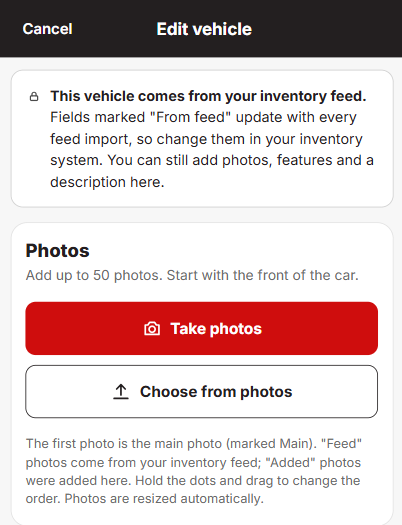
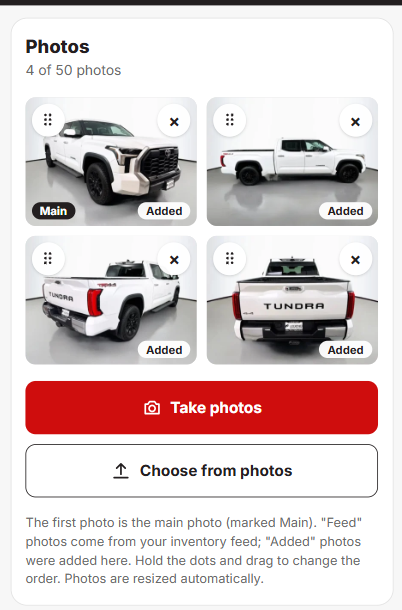
Step 2 – Photos
- Tap Take photos and walk around the car, or Choose from photos.
- Drag photos to change the order. The first one is the main photo.
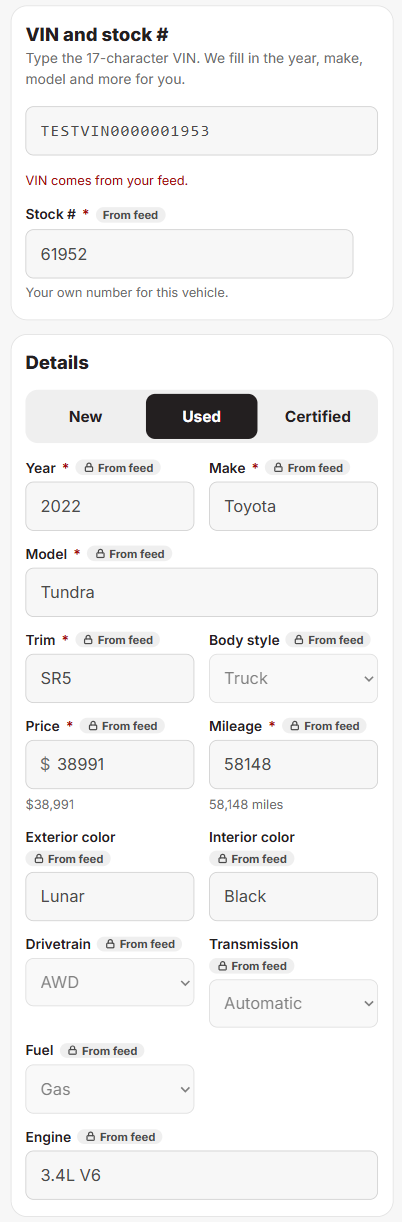
Step 3 – VIN and stock #
- Type the 17-character VIN and tap Look up.
- The VIN decoder (free, from the U.S. government's NHTSA) fills in year, make, model, trim, body, engine, drivetrain and fuel.
- Add your stock number.
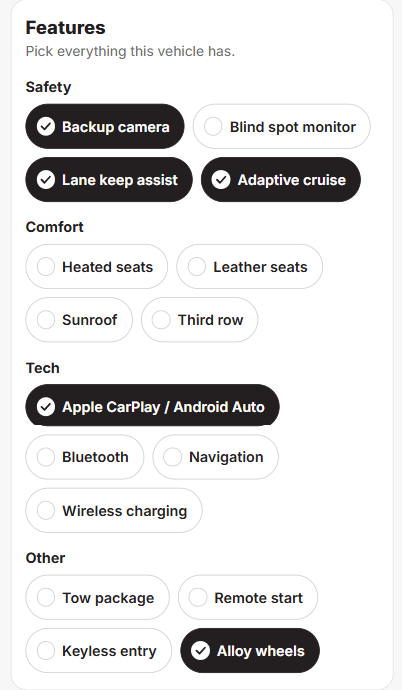
Step 4 – Details, features and description
- Check what filled in. Boxes outlined in red still need you, like price and mileage (numbers only).
- Tap every feature the car has.
- Description: write a short one, or leave it empty and one is written for you.
Step 5 – Publish
- Tap Publish to put it on your website, or Save draft to finish later (Vehicles › Drafts).
Done right? Tap View on site. The car shows on your inventory with its photos.
Editing a car from your feed
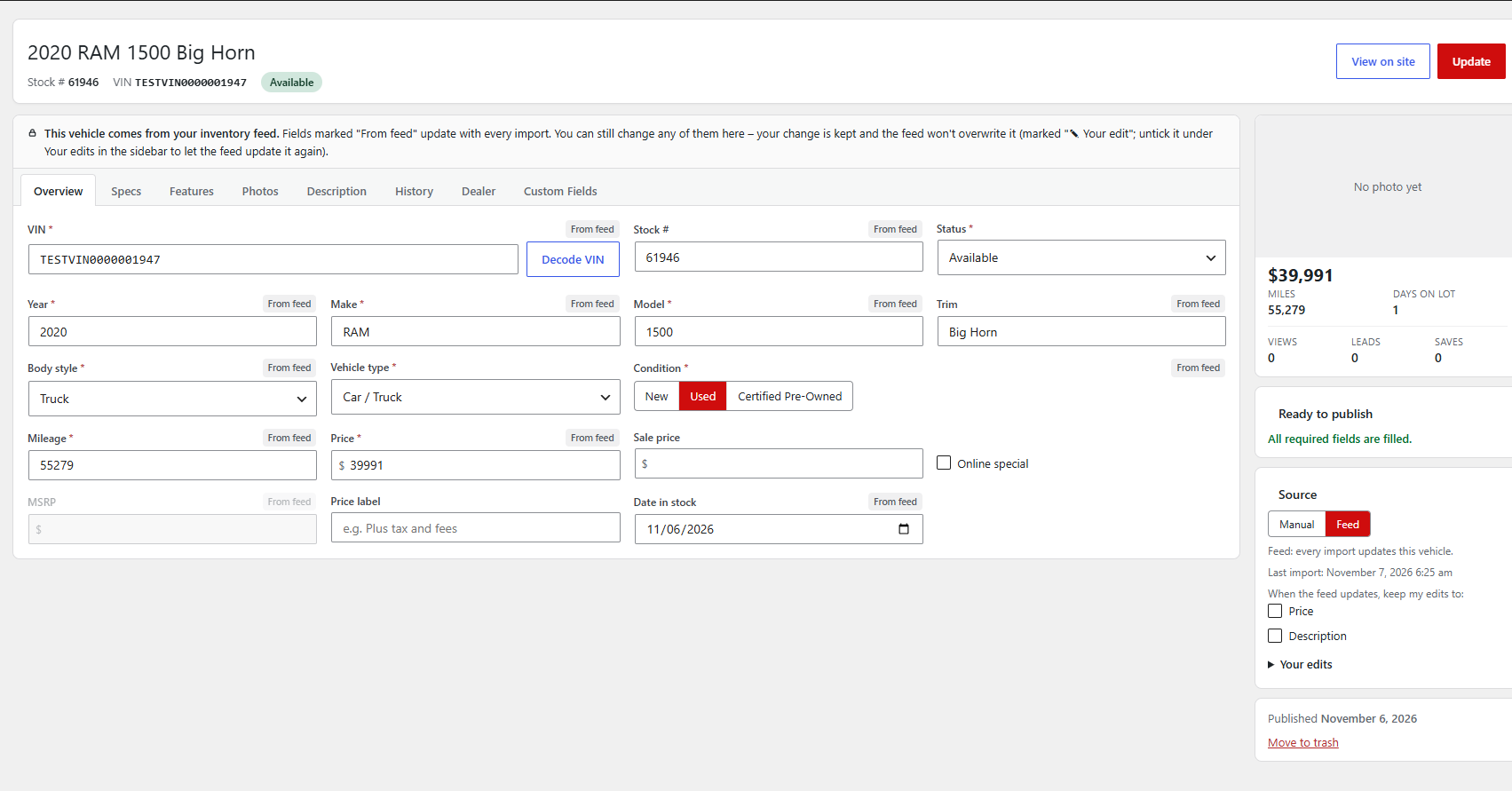
On a computer, open the car in Vehicles. Boxes marked From feed update with every import. Change one and it's kept and marked ✎ Your edit. To let the feed update it again, untick it under Your edits in the sidebar and click Update.
Weak signal on the lot? Keep the page open. Photos retry on their own; anything that still fails shows a Retry button. Full details: Dealer guide, section 7.