
Dealer guide
Send your cars to Google, Facebook and more
Make a feed once and Google, Facebook or CarGurus pick up your cars every day by themselves. About 10 minutes per site.
You need:WordPress admin login · an account on the site you're sending to (Google Merchant Center, Meta Commerce Manager, CarGurus dealer account) · your Google store code (for Google)
Step 1 – Dealer info for feeds (once)
- Go to Vehicles › Export feeds.
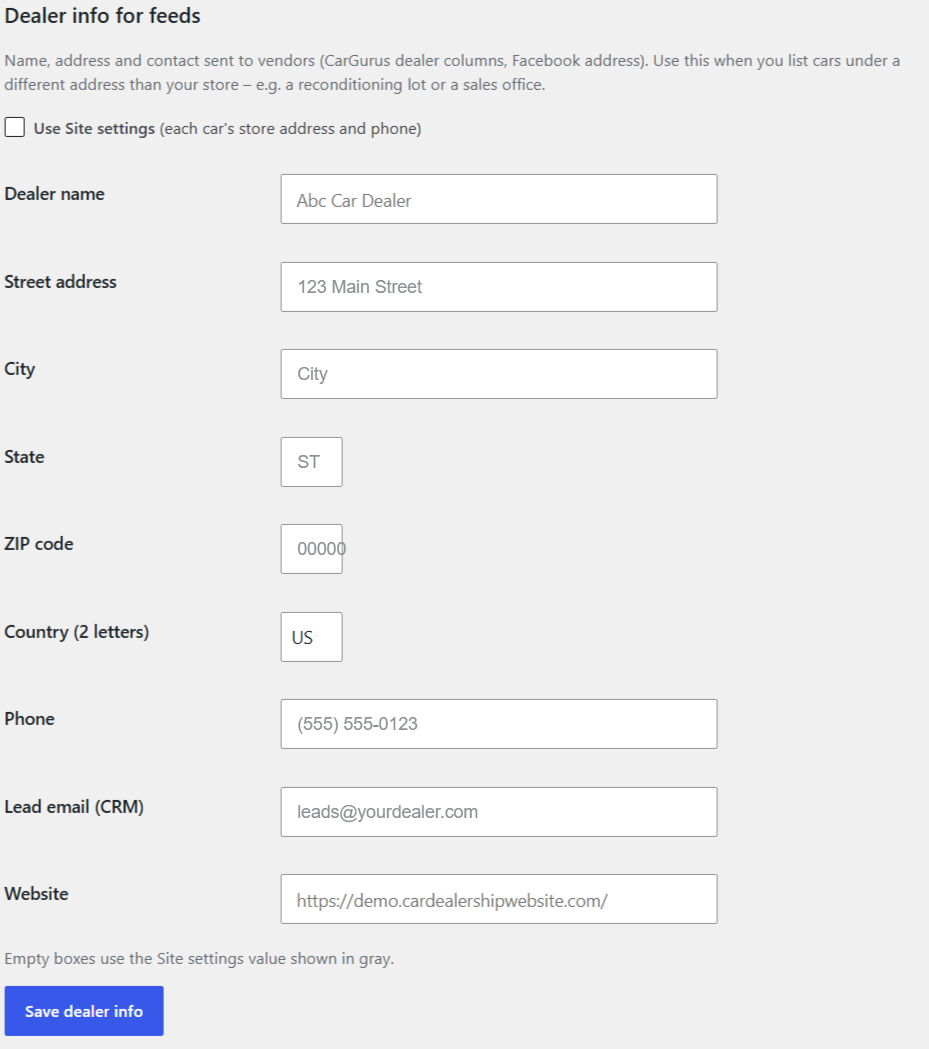
- Scroll to Dealer info for feeds, check your name, address and phone, click Save dealer info.
- Google: add your Google store code in Site settings › Store info.
Step 2 – Create a feed
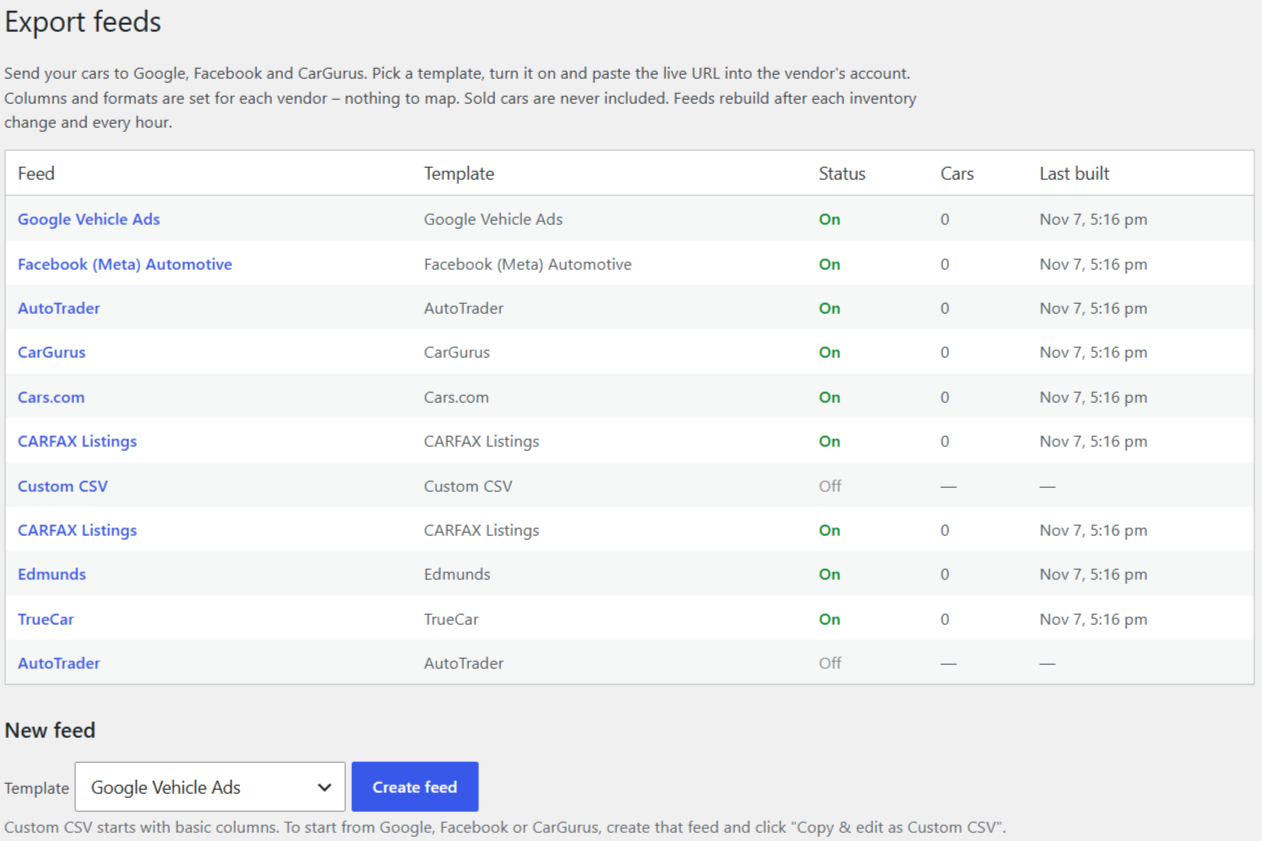
- Under New feed, pick the site: Google Vehicle Ads, Facebook (Meta), CarGurus, AutoTrader or Custom CSV.
- Click Create feed.
Step 3 – Copy the Live URL
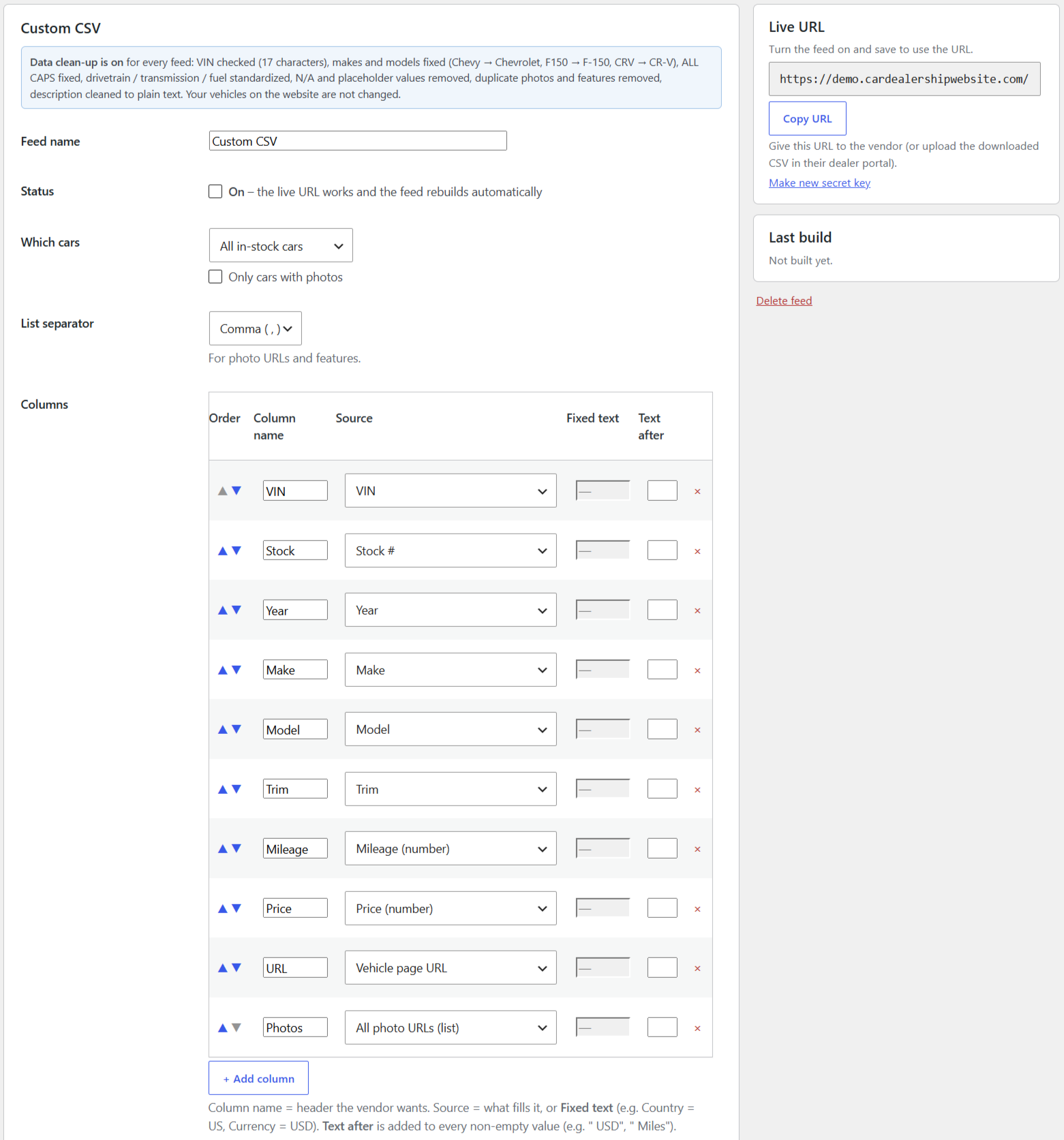
- Open the feed. Under Live URL, click Copy URL.
- Check Preview to see the cars and columns that will be sent.
- Some sites want a file on their server instead: use Delivery (FTP/SFTP) › Save & test connection.
Step 4 – Paste it into the site
- Google: Merchant Center › Products › Add products from a file › Add a file from a link › paste the URL › schedule daily.
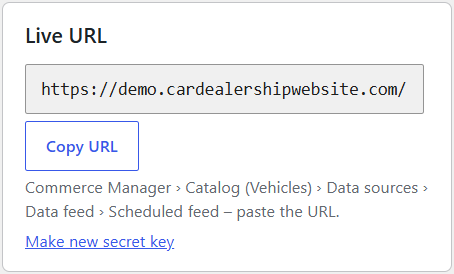
- Facebook: Commerce Manager › your catalog (type: Vehicles) › Data sources › Data feed › Scheduled feed › paste the URL › daily.
- CarGurus / AutoTrader: send the URL to your rep, or set up FTP delivery with the details they give you.
Done right? The feed page shows Last build with your car count, and the site shows your cars within a day.
Good to know: feeds rebuild by themselves when your cars change (Rebuild now forces it). Cars without a price or photos are left out so the site doesn't reject your feed. Make new secret key stops the old URL – paste the new one into the site. Full details: Dealer guide, section 9.