
Dealer guide
Track visits, calls and leads (Google Analytics and ads)
Paste your IDs once and every call, form and vehicle lead is counted in Google Analytics and your ad accounts. About 10 minutes.
You need:WordPress admin login · your Google Analytics 4 ID (starts with G-) · ad account IDs if you advertise (Google Ads, Meta, Microsoft, TikTok)
Step 1 – Find your Google Analytics ID
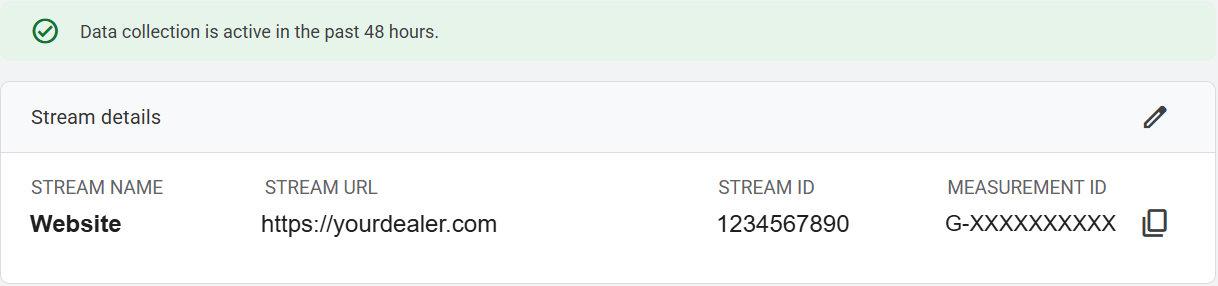
- In Google Analytics: Admin › Data streams › click your website.
- Copy the Measurement ID (starts with G-).
Step 2 – Paste it into your website
- Go to Car Lots › Site settings › Store info.
- Paste it in Google Analytics 4 ID. Click Save.
- Already use Site Kit or another analytics plugin? Leave this empty – use one, not both.

Step 3 – Ad accounts (optional)
In the same place, under Ads tracking, paste the IDs for the ad accounts you use. (Coming in the next update.)
- Google Ads: your ID (AW-…) plus the conversion labels for calls and leads.
- Meta (Facebook/Instagram) Pixel ID.
- Microsoft (Bing) Ads UET tag ID.
- TikTok Pixel ID.
- Other tracking code: paste any other script (Snapchat, CallRail, chat…).
Calls and leads are then counted in each ad account automatically.
Step 4 – Check it works
- Open your website in a private window (ad blockers stop tracking in a normal window).
- Tap a phone number, and send a vehicle form.
- In Google Analytics, open Reports › Realtime. Within a minute you see click_to_call and product_submission.
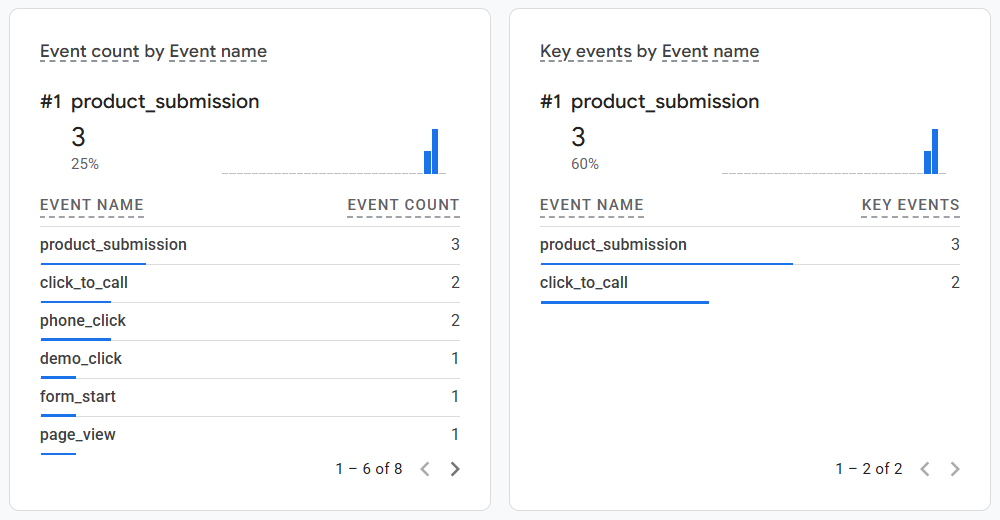
What's tracked: phone taps (click_to_call), vehicle page leads (product_submission), Finance, Car Finder, Contact, Service and Sell My Car forms (form_submission). Mark click_to_call and the lead events as Key events in GA4 so they count as conversions. Full details: Dealer guide, section 11.