
Dealer guide
Leads: who gets them and where to find them
Set who gets lead emails, send leads to your CRM, and find every lead in your dashboard. About 10 minutes.
You need:WordPress admin login · the email addresses that should get leads · your CRM's lead (ADF) email address, if you use a CRM · email sending set up (Email Setup Guide)
Step 1 – Who gets lead emails
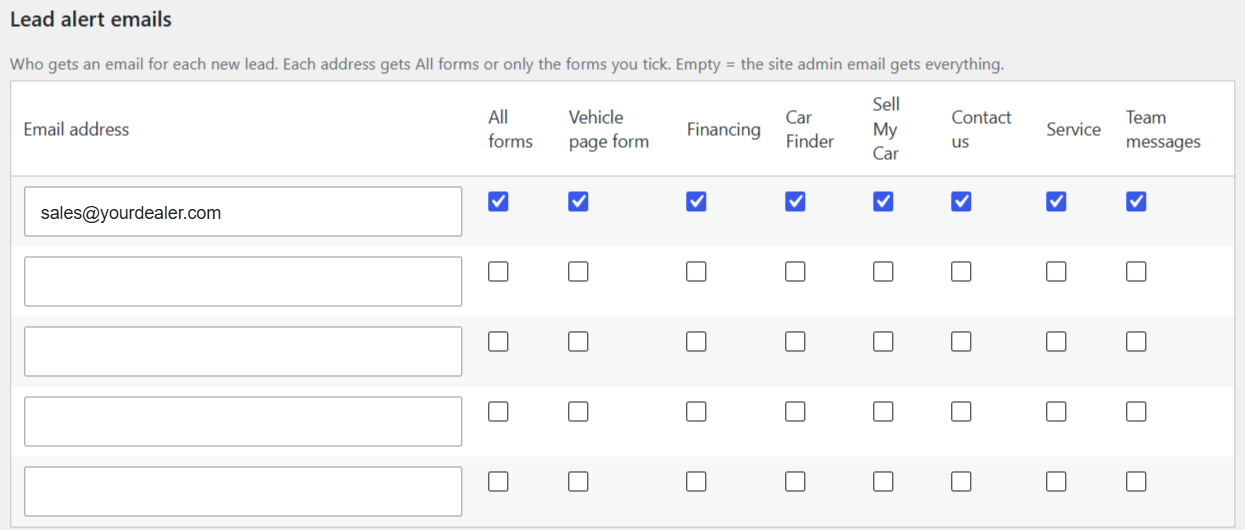
- Go to Car Lots › Forms & leads › Recipients.
- Type each address (one per row) and tick All forms or only the forms that person handles (e.g. Service).
- Leave Send the shopper a "We got your request" email on.
- Click Save changes.
Step 2 – Your CRM (optional)
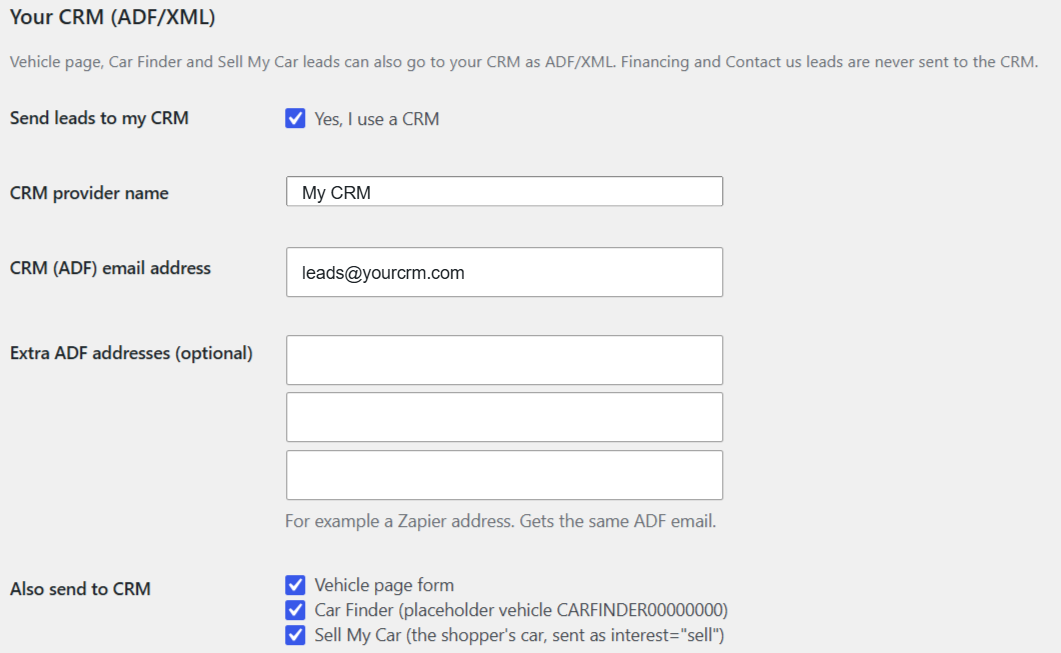
- Under Do you use a CRM? pick Yes.
- Type the CRM name and its lead (ADF) email address (your CRM gives you this).
- Pick which forms go to the CRM: Vehicle page, Car Finder, Sell My Car.
- Click Save and send a test lead and check it arrived in your CRM.
Step 3 – Find your leads in the dashboard
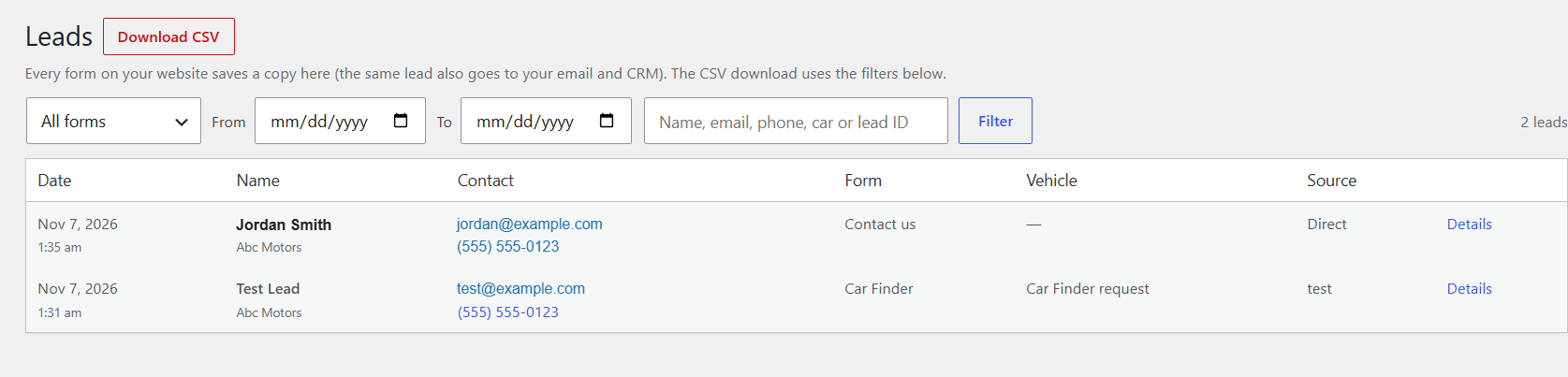
- Go to Car Lots › Leads. Every form sent on your website is saved here, even if an email fails.
- Pick a form (or All forms), a From and To date, and/or search by name, email, phone, car or lead ID. Click Filter. The count on the right shows how many leads match.
- Click Details on a lead to see every answer, the car, and where the shopper came from (Source).
- Need a list? Click Download CSV (top) to open it in Excel or Google Sheets. It downloads the leads that match your filters.
Done right? Send your Contact form from your phone: you get the lead email, your phone gets the confirmation, and the lead shows at the top of Leads.
Which leads go to the CRM? Vehicle page, Car Finder and Sell My Car (if ticked). Financing and Contact us leads go by email only. Full details: Dealer guide, section 10.